工具提示
非官方测试版翻译
本页面由 PageTurner AI 翻译(测试版)。未经项目官方认可。 发现错误? 报告问题 →
信息
由于当前技术限制(或尚未找到解决方案),该功能目前仅支持 fish、zsh、powershell(不支持 ConstrainedLanguage 模式)以及 cmd(需 Clink v1.2.46+ 版本)。
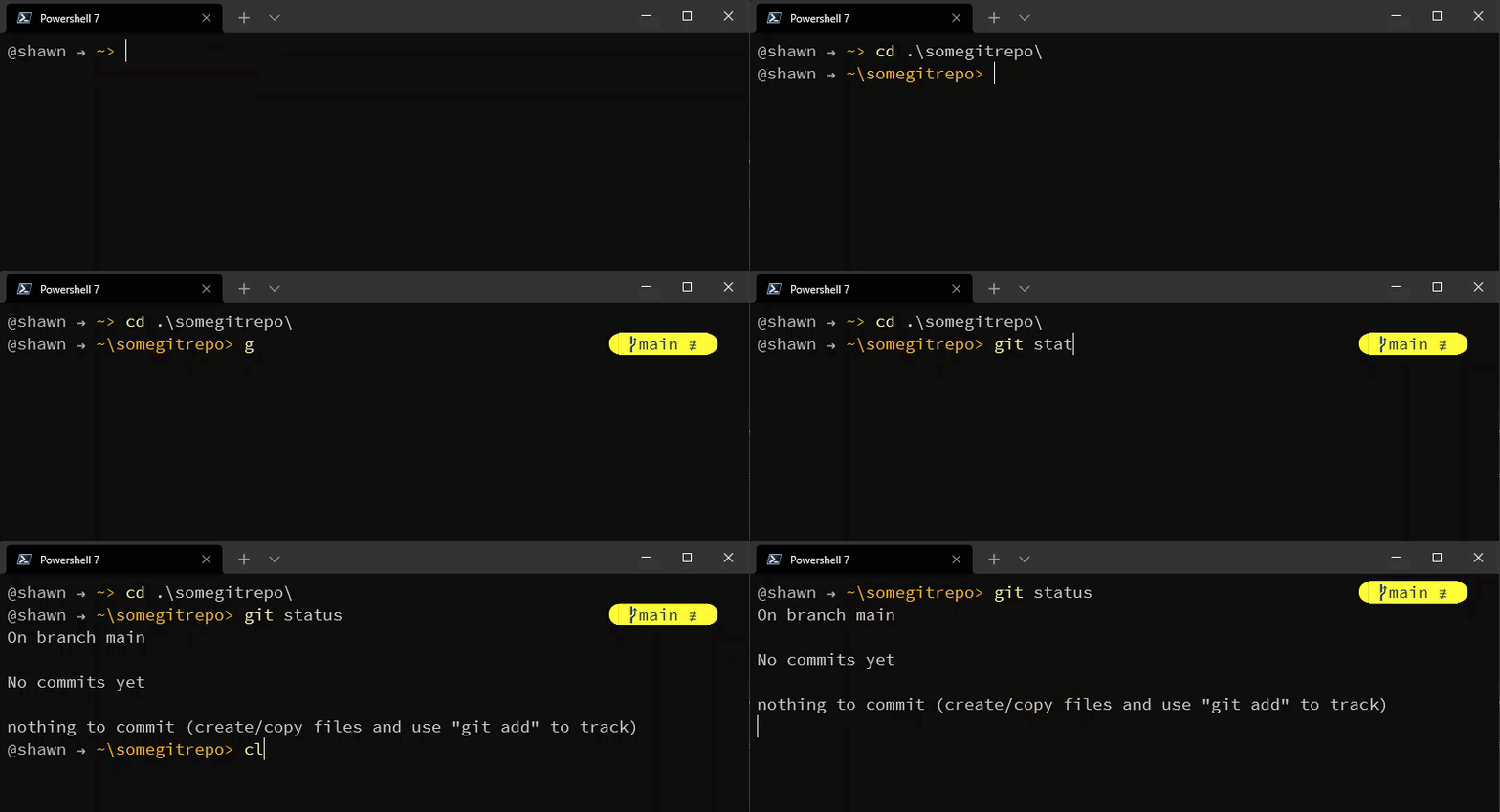
工具提示是当你输入特定关键词时,在终端右侧显示的提示区块。它们与其他区块的显示逻辑相似,你可以自由调整其显示条件和外观样式。关键区别在于工具提示通过 tips 机制触发——即你正在输入的命令。由于命令可能存在别名,你可以指定触发该区块的具体关键词。
配置
你需要扩展或创建包含工具提示的自定义主题,例如:
- json
- yaml
- toml
{
"blocks": [],
"tooltips_action": "replace",
"tooltips": [
{
"type": "git",
"tips": [
"git",
"g"
],
"style": "diamond",
"foreground": "#193549",
"background": "#fffb38",
"leading_diamond": "",
"trailing_diamond": "",
"template": "{{ .HEAD }}{{ if .Staging.Changed }} {{ .Staging.String }}{{ end }}{{ if and (.Working.Changed) (.Staging.Changed) }} |{{ end }}{{ if .Working.Changed }} {{ .Working.String }}{{ end }}",
"options": {
"fetch_status": true,
"fetch_upstream_icon": true
}
}
]
}
blocks: []
tooltips_action: replace
tooltips:
- type: git
tips:
- git
- g
style: diamond
foreground: "#193549"
background: "#fffb38"
leading_diamond:
trailing_diamond:
template: "{{ .HEAD }}{{ if .Staging.Changed }} {{ .Staging.String }}{{ end
}}{{ if and (.Working.Changed) (.Staging.Changed) }} |{{ end }}{{ if
.Working.Changed }} {{ .Working.String }}{{ end }}"
options:
fetch_status: true
fetch_upstream_icon: true
blocks = []
tooltips_action = "replace"
[[tooltips]]
type = "git"
tips = [ "git", "g" ]
style = "diamond"
foreground = "#193549"
background = "#fffb38"
leading_diamond = ""
trailing_diamond = ""
template = "{{ .HEAD }}{{ if .Staging.Changed }} {{ .Staging.String }}{{ end }}{{ if and (.Working.Changed) (.Staging.Changed) }} |{{ end }}{{ if .Working.Changed }} {{ .Working.String }}{{ end }}"
[tooltips.options]
fetch_status = true
fetch_upstream_icon = true
此配置会在你输入 git 或 g 加空格时,在右侧显示 git 信息区块。注意:提示词(tip)不应包含空格。需要特别说明的是,区块渲染是阻塞操作——如果渲染速度较慢,在显示完成前你将无法继续输入。我们正在优化此过程的性能。
你还可以为同一提示词配置多个工具提示。例如,此配置会在输入 terraform 加空格时,同时显示 AWS 配置文件和 Azure 订阅信息:
- json
- yaml
- toml
{
"blocks": [],
"tooltips": [
{
"type": "aws",
"tips": [
"aws",
"terraform"
],
"style": "plain",
"foreground": "#e0af68",
"template": "f {{.Profile}}{{if .Region}}@{{.Region}}{{end}}"
},
{
"type": "az",
"tips": [
"az",
"terraform"
],
"style": "plain",
"foreground": "#b4f9f8",
"template": " {{ .Name }}"
}
]
}
blocks: []
tooltips:
- type: aws
tips:
- aws
- terraform
style: plain
foreground: "#e0af68"
template: f {{.Profile}}{{if .Region}}@{{.Region}}{{end}}
- type: az
tips:
- az
- terraform
style: plain
foreground: "#b4f9f8"
template: {{ .Name }}
blocks = []
[[tooltips]]
type = "aws"
tips = [ "aws", "terraform" ]
style = "plain"
foreground = "#e0af68"
template = "f {{.Profile}}{{if .Region}}@{{.Region}}{{end}}"
[[tooltips]]
type = "az"
tips = [ "az", "terraform" ]
style = "plain"
foreground = "#b4f9f8"
template = " {{ .Name }}"
工具提示操作方式
你可以配置工具提示的显示方式:扩展当前右侧提示符(rprompt)或替换它(默认行为)。通过在配置中设置 tooltips_action 属性实现,可选值包括:
-
replace:用工具提示替换当前右侧提示符(默认行为) -
extend:将工具提示追加到当前右侧提示符之后 -
prepend:将工具提示插入到当前右侧提示符之前
在配置文件中按如下方式设置该属性:
- json
- yaml
- toml
{
  "blocks": [],
  "tooltips_action": "extend",
  "tooltips": []
}
blocks: []
tooltips_action: extend
tooltips: []
blocks = []
tooltips_action = "extend"
tooltips = []